Invite new users to your Oleria workspace, update their roles, and remove access when needed. All user management actions are available to Administrators from the Manage Users panel.
Add a user
Open Manage Users
Log into the Oleria workspace. Select your avatar in the upper right corner, then choose Manage Users from the dropdown.
Click Add new user
Select Add new user.
Fill in user details
In the New user dialog, enter the user’s email address and select their role. All fields are required. Click Save.
Confirm the action status
A status notification confirms the action completed successfully.
Verify the invited user
The new user appears in the user list with an Invited status.
no-reply@oleria.com with a link to accept the invitation. They must accept within 7 calendar days before the invitation expires.
Accept an invitation
Invited users receive a “You’ve been invited to join [your tenant]‘s Oleria workspace” email from no-reply@oleria.com. If it doesn’t arrive within a few minutes, check your spam or junk folder.
Click Accept Invitation
Open the invitation email and click Accept Invitation.
Select your login option
On the login screen, select the option that matches your email provider.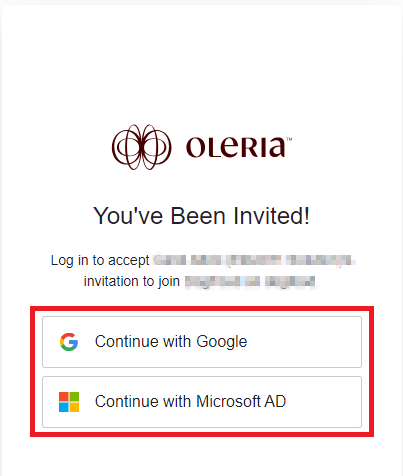
Confirm active status
Login is complete. The user now appears as Active in the user list.
Resend an invite
Invitations expire after seven days. If a user did not accept in time, you can resend the invitation.
Open Manage Users
Log into the Oleria workspace. Select your avatar in the upper right corner, then choose Manage Users from the dropdown.
Select the user
Click the row for the user whose invitation you want to resend.
Click Resend invite
Select Resend invite.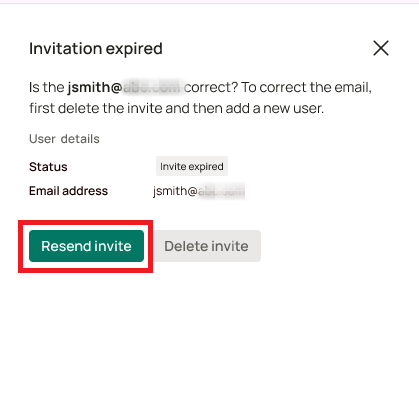
Confirm the action status
A status notification confirms the invite was resent. The user’s status returns to Invited.
If the email address was incorrect, delete the user before resending an invite.
Delete an invite
Cancel a pending invitation before the user accepts it.
Open Manage Users
Log into the Oleria workspace. Select your avatar in the upper right corner, then choose Manage Users from the dropdown.
Select the user
Click the row for the user whose invitation you want to delete.
Click Delete invite
Select Delete invite.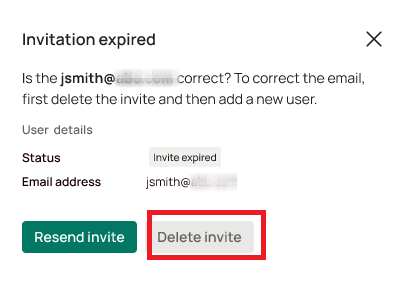
Confirm the deletion
Click Yes, delete invite to confirm.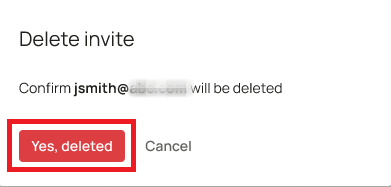
Confirm the action status
A status notification confirms the deletion. The user no longer appears in the user list.
Update a user’s role
Change the role assigned to an existing user.
Open Manage Users
Log into the Oleria workspace. Select your avatar in the upper right corner, then choose Manage Users from the dropdown.
Select the user
Click the row for the user whose role you want to change.
Click Change role
Select Change role.
Select the new role
In the dialog, select the new role for the user. See Default user roles for a description of each role.
Save the change
Click Save. A status notification confirms the update. The user list reflects the new role..png)
Remove a user
Revoke a user’s access to the Oleria workspace.
Open Manage Users
Log into the Oleria workspace. Select your avatar in the upper right corner, then choose Manage Users from the dropdown.
Select the user
Click the row for the user you want to remove.
Click Delete
Select Delete.
Confirm the removal
Click Yes, remove user to confirm.
Confirm the action status
A status notification confirms the removal. The user no longer appears in the user list.