
Prerequisites
- The user granting these permissions must have Administrative privileges.
Standard integrations are configured with read-only permissions. Use a service account (and not an employee account) with the suggested privileges for the integration to ensure continuity.
Create an Oleria Application in PingOne
Create a new application
Log in to your PingOne instance, navigate to Applications, and click the + icon to create a new application.Enter the application name Oleria, select application type Worker, and select Save.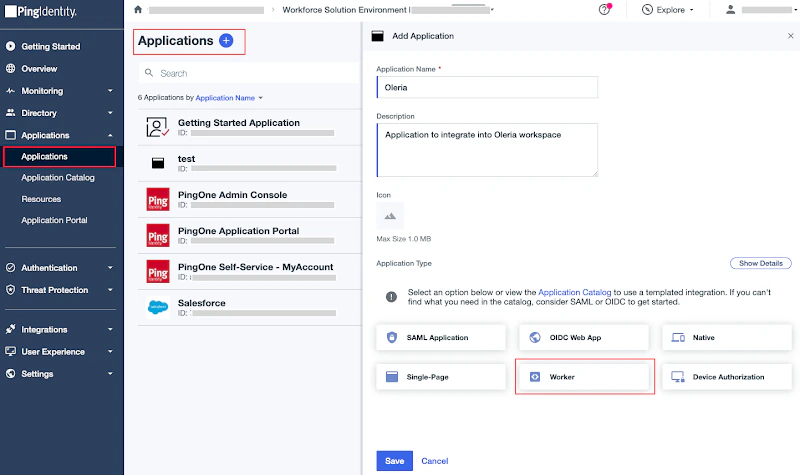
Select the required roles
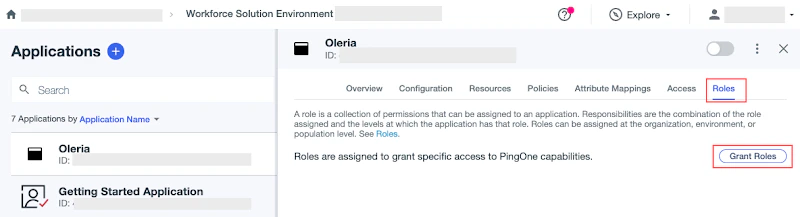
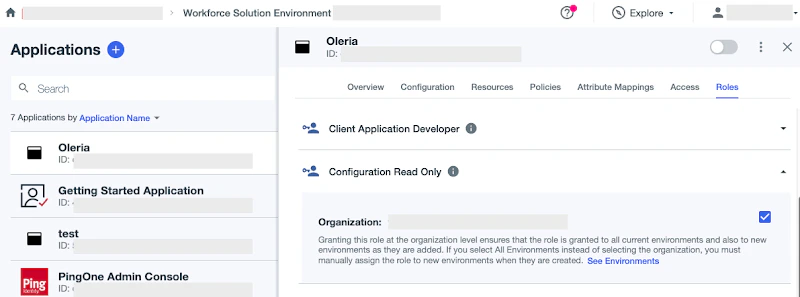
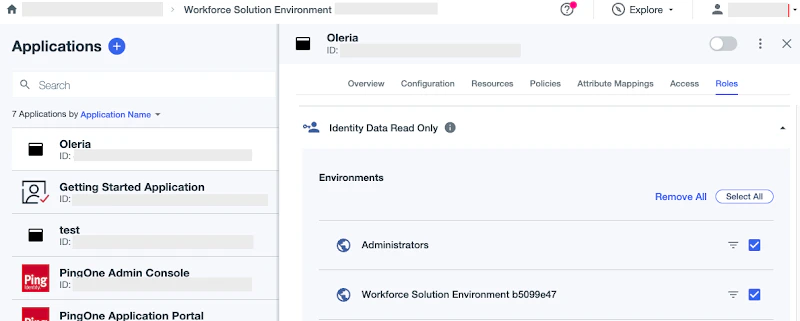
Select the following roles:
- Configuration Read Only (select organization)
-
Identity Read Only (select all environments)
Grant remediation roles (optional)
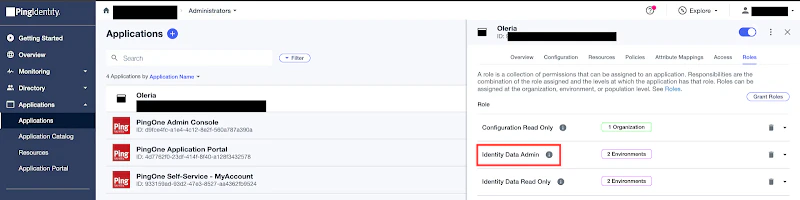
To enable remediations for disabling dormant accounts and removing user accounts from groups, grant the Identity Data Admin role and select all environments. Select Save.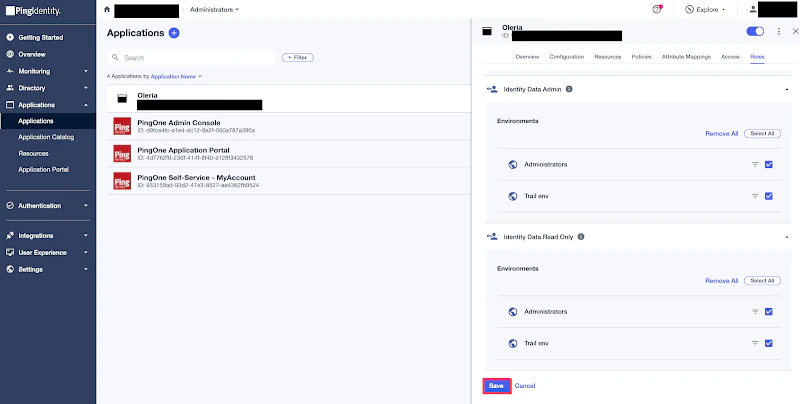

Note down the application credentials
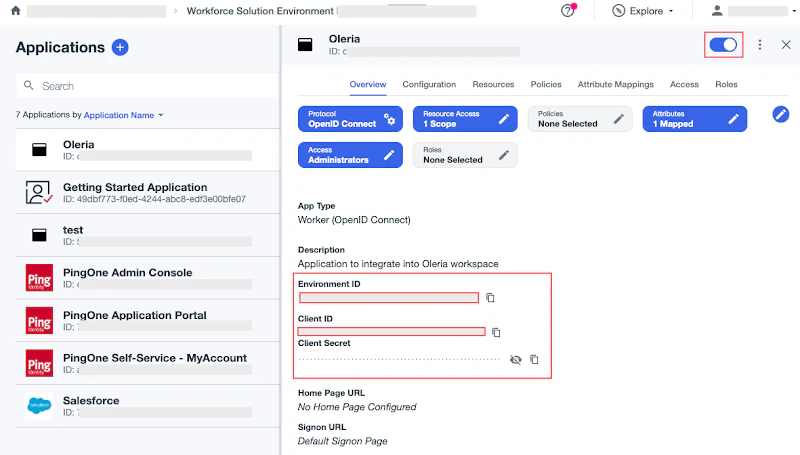
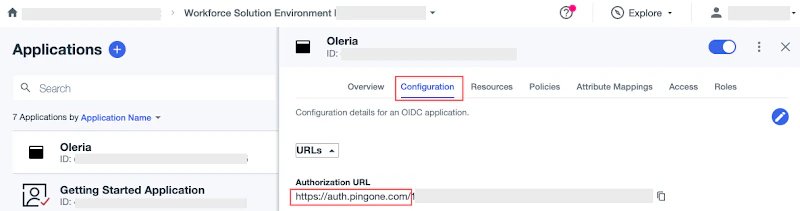
From the Oleria application Overview, note down the following:
- Environment ID
- Client ID
-
Client Secret
Connect PingOne to Oleria
Open the integration
Log in to your Oleria workspace, navigate to Integrations, and select PingOne. A side page opens - select Continue.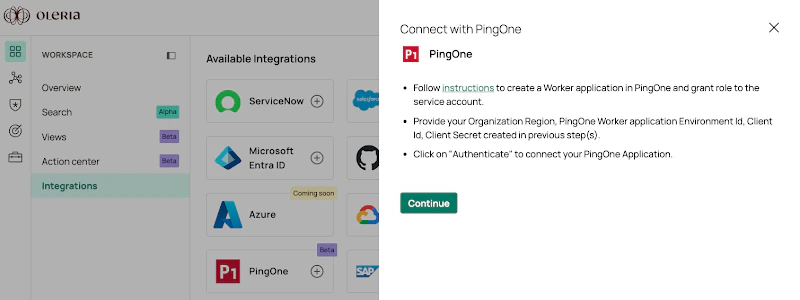
Provide your credentials
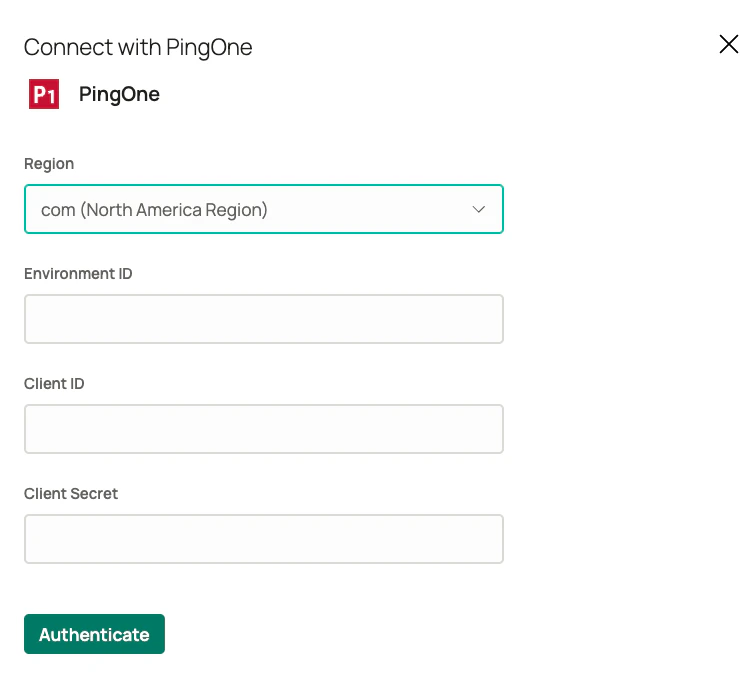
Provide the following information and select Authenticate:
- Region - from the previous section
- Environment ID - from the previous section
- Client ID - from the previous section
-
Client Secret - from the previous section