Oleria provides adaptive and autonomous access security that sets your business free. As part of that promise, we provide deep integration of your Google Workspace into the Oleria platform. Google Workspace includes both Google Cloud Identity (Admin) and Google Drive. This document provides step-by-step guidance to integrate Google Workspace with your Oleria workspace.
Prerequisites
- Google Super Admin privileges
- Grant domain-wide delegation to the Oleria app for the required scopes
Use a service account (and not an employee account) with super admin privileges for the integration to ensure continuity.
Grant Domain-Wide Delegation
Sign in to Google Workspace Admin
Use your Super Admin account to login to Google Workspace and select the Admin console.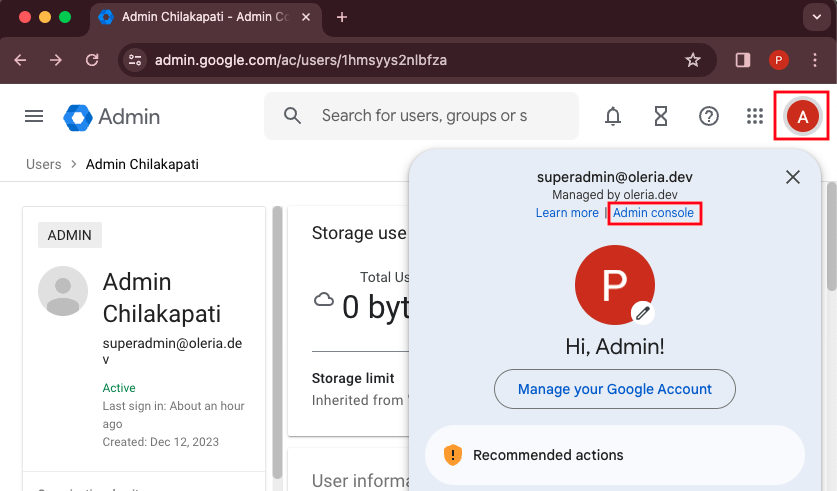
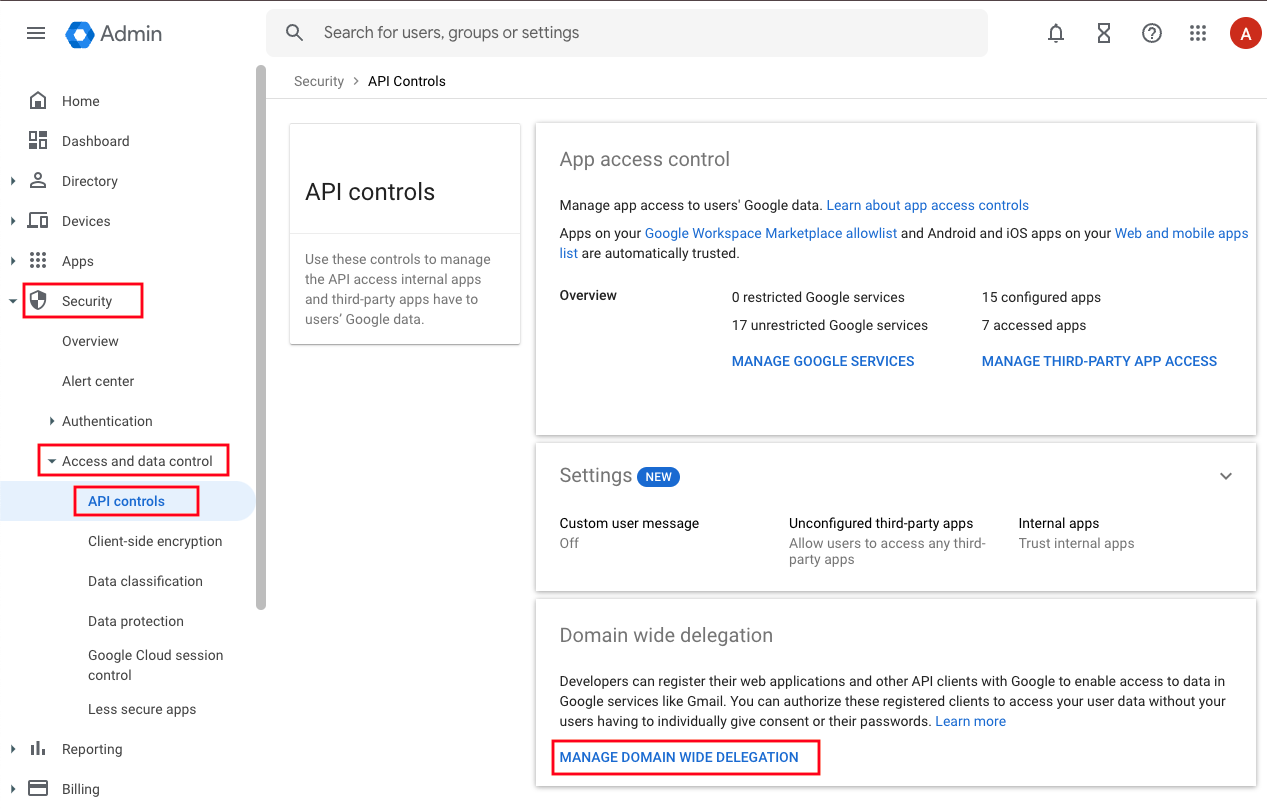
Open Domain-Wide Delegation settings
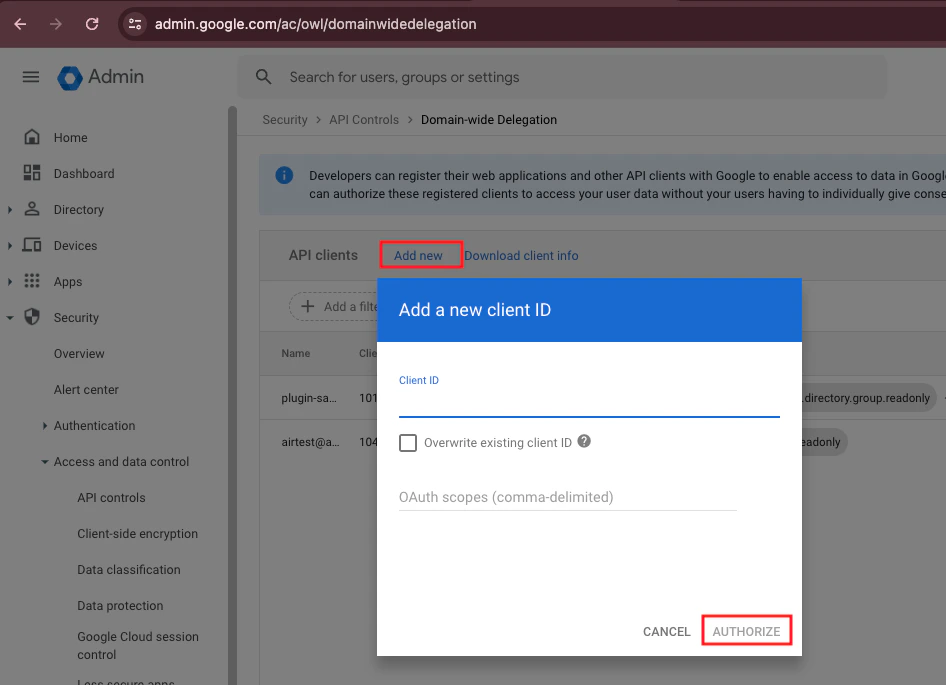
Add the Oleria Client ID and OAuth scopes
Select Add new, enter the Client ID and scopes below, then select Authorize.Client ID: 101716000692695758600Google Admin - Directoryhttps://www.googleapis.com/auth/admin.directory.user.readonly,
https://www.googleapis.com/auth/admin.directory.user.alias.readonly,
https://www.googleapis.com/auth/admin.directory.user.security,
https://www.googleapis.com/auth/admin.directory.group.readonly,
https://www.googleapis.com/auth/admin.directory.group.member.readonly,
https://www.googleapis.com/auth/admin.directory.orgunit.readonly,
https://www.googleapis.com/auth/admin.directory.rolemanagement.readonly,
https://www.googleapis.com/auth/admin.directory.userschema.readonly,
https://www.googleapis.com/auth/admin.directory.customer.readonly,
https://www.googleapis.com/auth/admin.directory.domain.readonly
https://www.googleapis.com/auth/admin.reports.audit.readonly
https://www.googleapis.com/auth/cloud-identity.groups.readonly
https://www.googleapis.com/auth/drive.metadata.readonly,
https://www.googleapis.com/auth/drive.activity.readonly,
https://www.googleapis.com/auth/drive.readonly
Grant remediation scopes (optional)
To perform remediations, grant domain-wide delegation for the following additional scopes:To revoke external users’ access:https://www.googleapis.com/auth/drive
https://www.googleapis.com/auth/admin.directory.user
https://www.googleapis.com/auth/admin.directory.group.member
Grant Drive label scopes (optional)
To view and manage Drive labels, grant the following scopes:https://www.googleapis.com/auth/drive.labels
https://www.googleapis.com/auth/drive.labels.readonly
https://www.googleapis.com/auth/drive.admin.labels
https://www.googleapis.com/auth/drive.admin.labels.readonly
Connect Google Workspace to Oleria
Open the integration
Go to your Oleria workspace, select Integrations → select Google Drive.
Authenticate
Select Connect to complete the integration.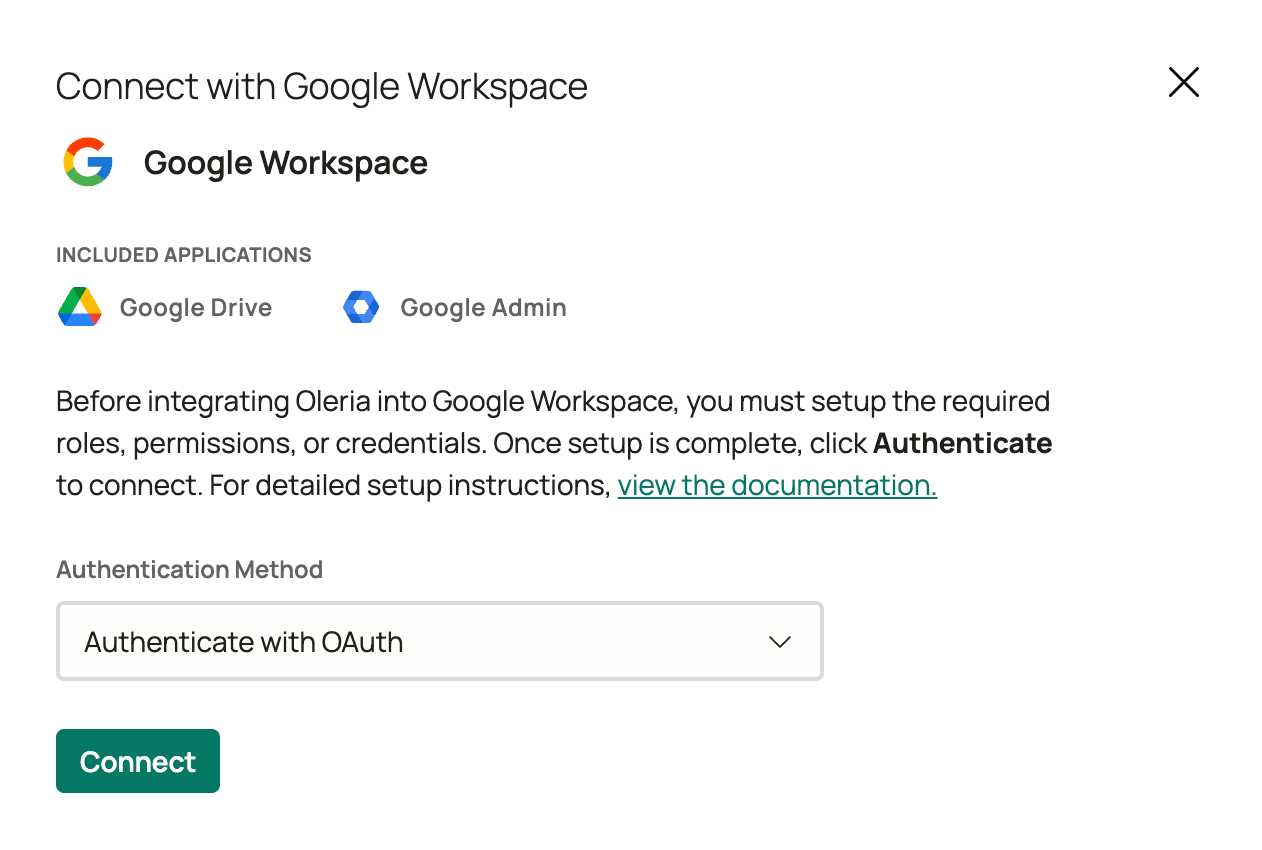 Provide your Super Admin credentials and complete the authentication process.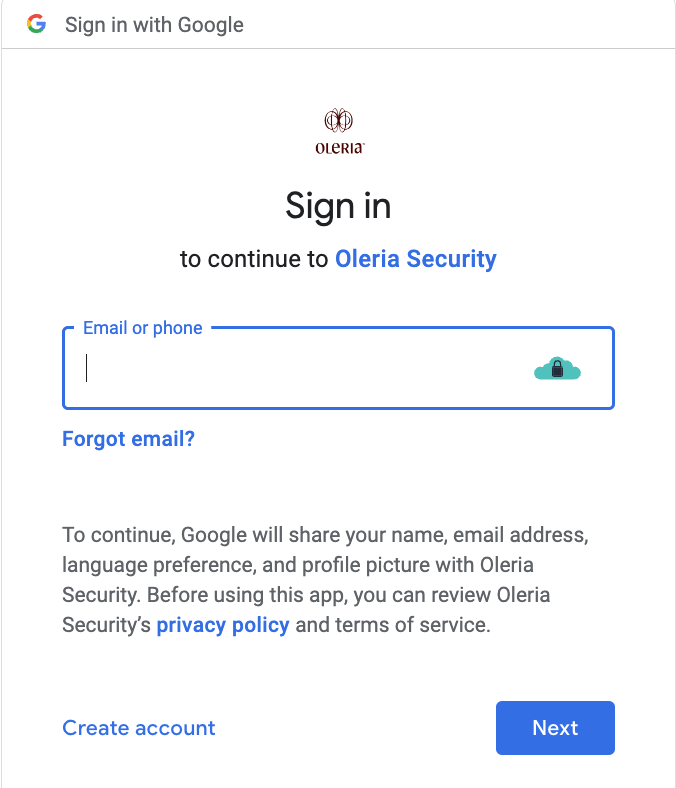
Confirm the connection
You can find the newly integrated Google Admin and Google Drive instance in your Oleria workspace connected integrations.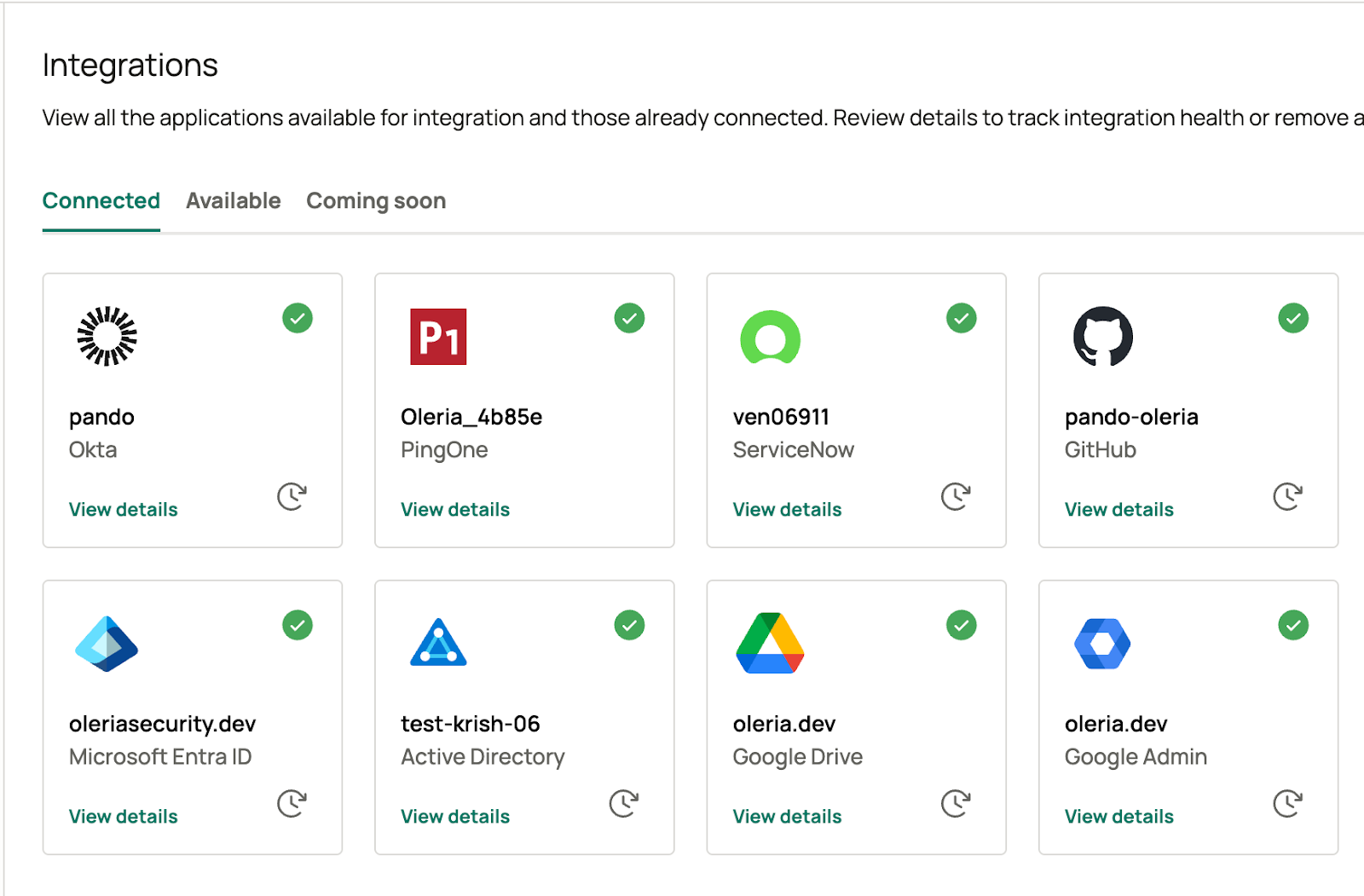
Re-integrate Google Drive and Admin
Initiate re-integration
Go to the connected integrations page and click the re-integration button to begin.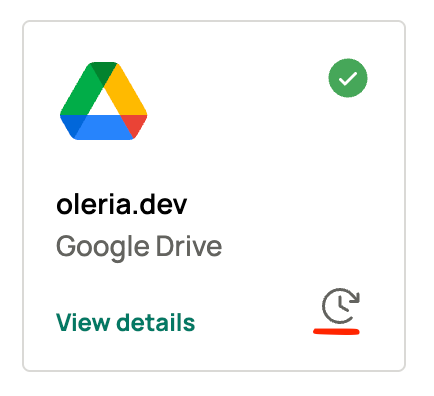
Complete with service account
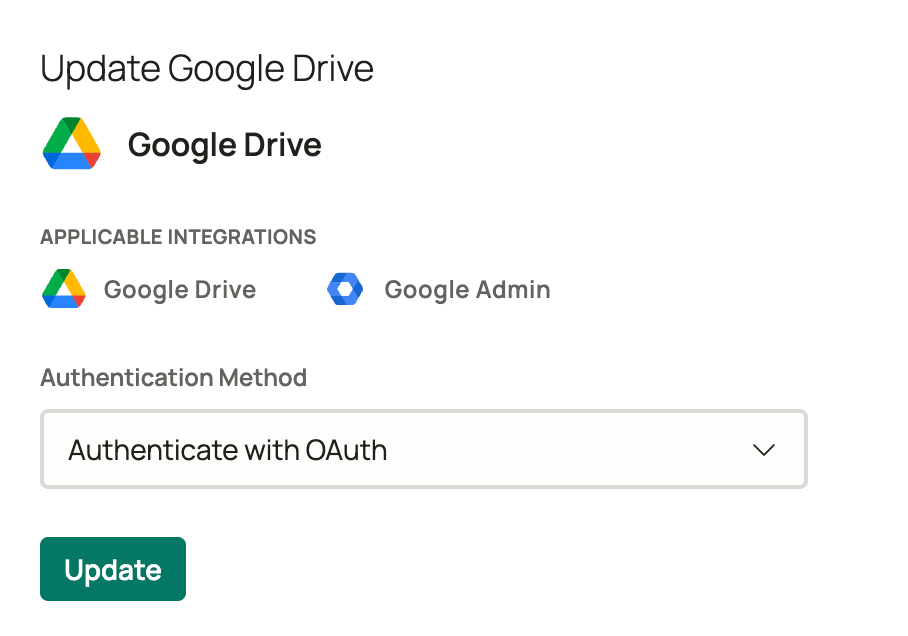
Select Update and use a service account with Super Admin privileges to complete the re-integration.