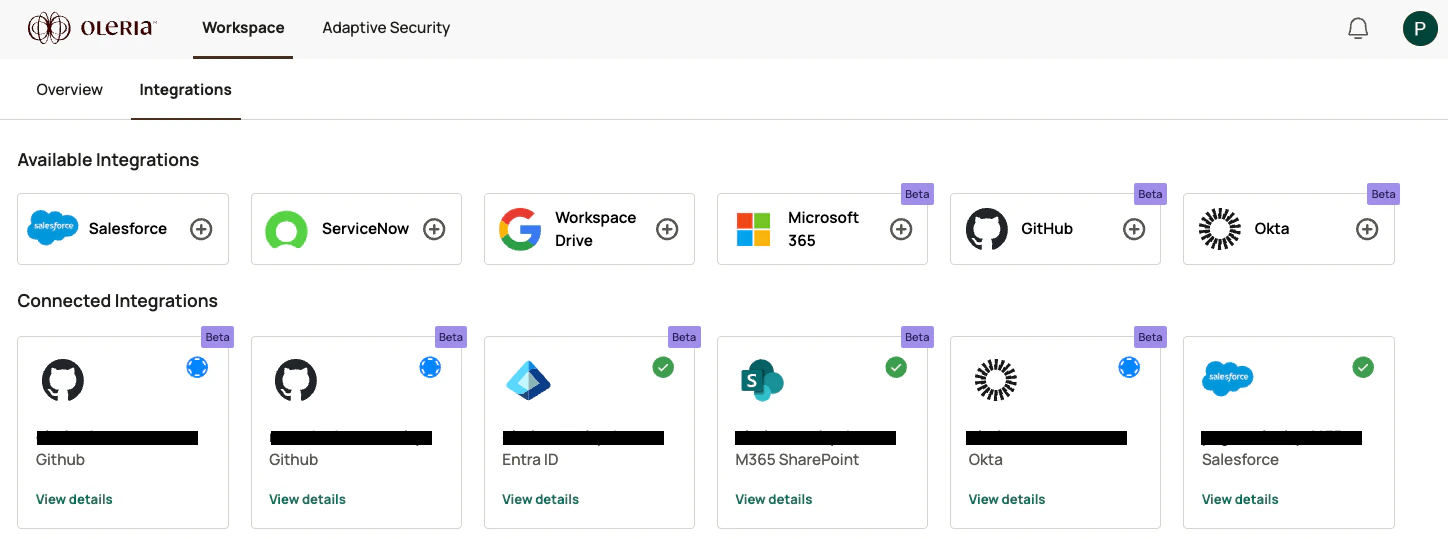
Oleria provides adaptive and autonomous access security that sets your business free. As part of that promise, we provide deep integration of your GitHub into the Oleria platform. This document provides step-by-step guidance to integrate your GitHub instance with your Oleria workspace.
Prerequisites
Use a service account (and not an employee account) with the suggested privileges for the integration to ensure continuity.
Install the Oleria GitHub Connector
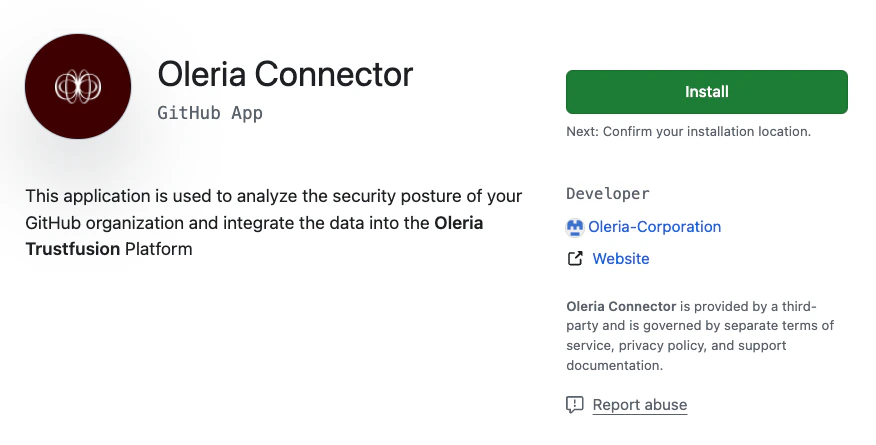
Open the connector application
Select your GitHub organization
Select the GitHub organization to install the Oleria GitHub application.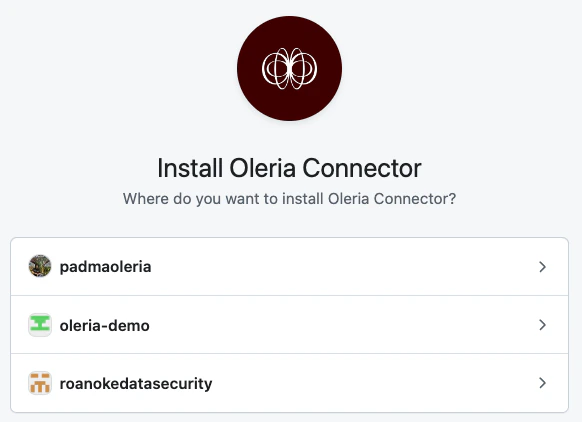
Complete the installation
Click the Install button to complete the installation.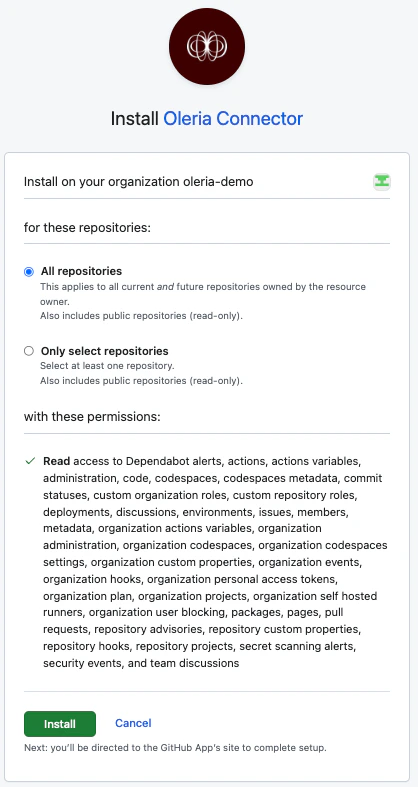
Verify the Oleria Application
Open GitHub Settings
Login to GitHub → select Settings → go to Third-party Access and select GitHub Apps.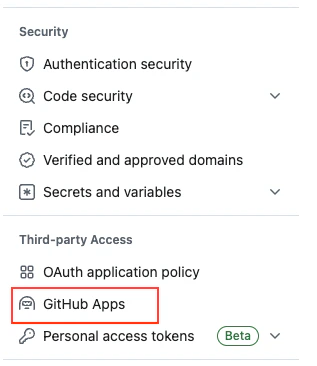
Confirm installation
You will find Oleria Connector listed under the Installed GitHub Apps section.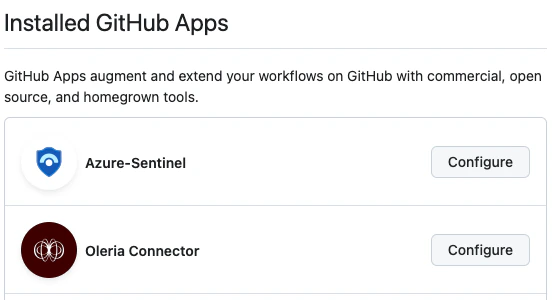
Connect GitHub to Oleria
Open the integration
Go to your Oleria workspace, select Integrations → select GitHub.
Authenticate
Select Continue, provide your GitHub URL and select Authenticate.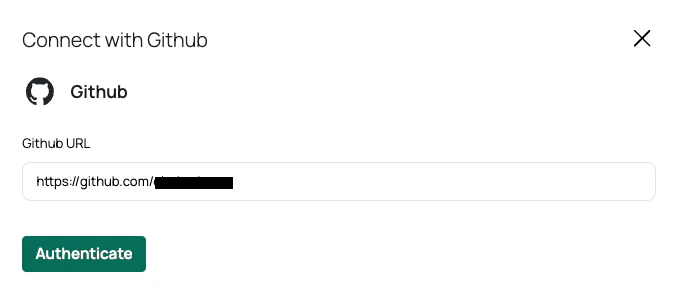 You can find the newly integrated GitHub instance in your connected integrations.